Captcha
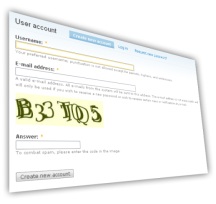
MyCaptcha1 is a CAPTCHA implementation for Drupal 5.x. A CAPTCHA is a test that tries to determine whether a user is human (learn more).
The combination of MyCaptcha and Form Store enables you to add captchas to arbitrary forms2 on your site without modifying a single line of code.
While MyCaptcha provides much of the same functionality, it is not related to the Captcha and TextImage modules by Fabiano Sant'Ana that can be downloaded from Drupal.org.
1Yes, a lousy name.
2Due to the way the Drupal login form has been coded, it cannot be protected by MyCaptcha.
Bugs & Support
Update: MyCaptcha is no longer supported.
FAQ
- Will there be a Drupal 6 version?
-
Considering the improvement in the Drupal.org captcha in the last three years, the effort spend to update MyCaptcha to Drupal 6.x is not proportional to the benefits it has. So, I'm sorry, but there will not be a Drupal 6.x version of MyCaptcha.
- Why is this module not on Drupal.org?
-
There's already a CAPTCHA module on Drupal.org. Functionality should not be duplicated in the Drupal.org repository.
- OMG! The image is unreadable!!!!
-
Visit the settings page on Administer » Site configuration » Captcha (admin/settings/mycaptcha/image) and disable some of the noise options (Double vision, Dots, Lines). See the page Image captcha settings for more information.
Requirements
Before installation, ensure your system meets the requirements.
- Drupal 5.x
- MySQL as database
- PHP with GD 2 support (default)
- The FreeType library.
- Form Store - Installation covered in this guide.
While MyCaptcha supports PostgreSQL, Form Store doesn't (yet; there's an untested patch in the Form store issue queue).
MyCaptcha cannot be used alongside the modules TextImage and Captcha from Drupal.org.
Installation
Download and install
- Download Form Store.
- Extract the folder
form_storeintosites/all/modules/using a decompression utility (7-zip). - Download MyCaptcha.
- Extract the folder
mycapintosites/all/modules/using a decompression utility (7-zip).
Enable the modules
Visit Administer » Site building » Modules (admin/build/modules) and check the modules:
- Form Store
- Form Collect
- MyCaptcha
Save the configuration. Both Form Store and MyCaptcha will apply all necessary changes to the database.
Basic configuration
The first tab of Administer » Site configuration » Captcha (admin/settings/mycaptcha) enables you to select the captcha type (math or image) that will be used site-wide. It also contains the clickable sentence "Captcha settings for ..." for each role defined on your site.
When you click on such a sentence, for example, "Captcha settings for anonymous user", a box will open as in the image on the right. This box lists the various forms you can use a captcha on. Simply check the relevant forms and repeat for the other roles on your site (if necessary). Click Save and you're done.
Example
Suppose you wish to enable image captchas for the user registration page. First, select Image captcha for the captcha type. Then, open the "Captcha settings for anonymous user" setting box by clicking on the title. Check the box in front of "register a user account" and click save. If you now logout and visit user/register you'll see an image captcha on the registration form.
Further reading
Settings for both captcha types are available via tabs on Administer » Site configuration » Captcha (admin/settings/mycaptcha). See for more information:
Visit the Advanced configuration guide to learn how to add a captcha to forms not listed on the Captcha settings page.
Image captcha settings
The tab 'Images' on Administer » Site configuration » Captcha (admin/settings/mycaptcha/image) gives access to a few settings to influence image captcha generation.
- Characters to appear in the image
- Only characters in this textfield will be used in an image captcha. Those that can be easily mistaken for one-another in the font you are useing (eg i and l) can be removed.
- Font
- Relative path to a TrueType font you wish to use. MyCaptcha comes with a number of Bitstream fonts in the font subfolder.
- Minimum captcha length
- The minimum amount of characters that appears in the captcha.
- Maximum captcha length
- The maximum amount of characters that appears in the captcha.
Next come a number of settings that add noise to the picture to make solving the captcha more difficult. As you can see in the examples below, those settings can be combined. Overdoing it might lead to a high percentage of captchas that aren't solvable by your visitors.
Be aware that some settings make it more time consuming, not impossible for a program to solve a CAPTCHA; most despeckle algorithms can clean up the dot noise, but they cost time.
| CAPTCHA | Settings |
|---|---|
| No additional noise | |
| Double vision | |
| Add dots as noise | |
| Add lines as noise | |
| Double vision, add dots as noise | |
| Add dots as noise, add lines as noise |
Math captcha settings
The tab 'Math' on Administer » Site configuration » Captcha (admin/settings/mycaptcha/math) doesn't contain a whole lot of settings. The only configurable option right now is the maximum answer of the math captcha. This is a measure of the difficulty of the captcha for humans (at least for those who can't find Calculator in their Start menu). The higher the maximum answer, the lower the chance that a bot guesses the right answer.
Note: It would be fairly easy to write a bot that could solve this kind of captcha.
Advanced configuration
Suppose you want to add a CAPTCHA to the site-wide contact form. As you enable the Contact module and configure the various contact settings, you realize you're out of luck; The Captcha settings page on Administer » Site configuration » Captcha (adminster/settings/mycaptcha) doesn't list the contact form!
Now what?
This is the part where a bit of work is required. In order to add a CAPTCHA to arbitrary forms, MyCaptcha utilizes the helper modules Form store and Form Collect. The module Form store provides MyCaptcha with its list of forms, whereas Form Collect is an ultrasmall helper that can add any form to the Form Store.
Adding forms to the Form Store
As you can see in the image above, the contact form isn't listed in the Form Store. So, check whether the module Form Collect is enabled (admin/build/modules) and do as the help text says; Visit Administer » Site configuration » Form Store, tab Collect forms (admin/settings/form-store/collect).
Simply check "Collect forms while browsing the site" and save the configuration. Now, all you have to do is visit the forms you want to add to the Form Store, in our case the form on the path contact. The moment you, or another visitor views the form, it is added to the Store. Return to Administer » Site configuration » Form Store, tab Collect forms (admin/settings/form-store/collect) to disable the collection.
You will now see that the contact form, with the cryptic name contact_mail_page has been added to the Form Store.
You can use the Description field to provide a more friendly description. This description will, when available, be used by MyCaptcha. To edit or remove a form, click edit, then choose the appropriate action.
In our case, we will add the description "contact form" to the form with the internal name contact_mail_page, so we'll have a less confusing Captcha settings page.
Add a Captcha
After all this, you can visit Administer » Site configuration » Captcha (adminster/settings/mycaptcha) once more. The contact form is now listed on the page and a CAPTCHA (here in the most unreadable variant) can be added to it.
Notes
While the example just adds one form to the Form Store, you can add multiple forms in one sitting.
When you finish Form collection, visit Administer » Site configuration » Form Store, tab Collect forms (admin/settings/form-store/collect) to disable collection. You can now disable the module Form collect (on admin/build/modules).
Known issues
- MyCaptcha can not be used with the login (user block & /user)or poll voting form.
This is due to the design of Drupal core. - MyCaptcha does not generate a new challenge when a form submission results in an error (other than in the CAPTCHA answer itself). While this is desireable behaviour for the large majority of forms, it does diminish its value on certain forms. Take the request new password form (user/password) for example; a bot can be 'primed' with the right captcha response, after which it can continue guessing for up to two hours (as the CAPTCHA expires in 7200 seconds).
This will change in the future, allowing per form settings. - MyCaptcha interacts with page caching (admin/settings/performance). A captcha prevents caching of pages on which it appears. You need to make sure forms with a captcha do not appear on too many pages, or cache will be effectively off. The comment submission form is the cause for most concern. Make sure you set the "Location of comment submission form" to "Display on separate page" on Administer » Content management » Comments, tab Settings (admin/content/comment/settings) or your content will no longer be cached.
This is by design. - When a user has more roles then just the "authenticated user" role, the captcha setting for "authenticated user" will not take effect for that user.
This is by design. -
When you are user 1 you will never see a captcha.
This is by design. - When you remove a form from the Form store while a captcha is enabled for it, you can no longer disable the captcha for the form. Add the form back to the Form store, then disable the captcha.
This is unfortunate. - If a certain (broken) form performs a drupal_goto() in its form submit function, MyCaptcha will not be able to clean up. This undermines the use of MyCaptcha for this form as the seed will be reuseable.
File a bug against the affected module.
Other known issues may be found in the MyCaptcha forum.
Thanks & Credits
MyCaptcha uses fonts by Bitstream and a wave distortion function from KCAPTCHA by Kruglov Sergei.
- Thanks to Xamox for testing.
- Thanks to Sepeck for testing.
- Special thanks to Tjeerd Zwaga.
MyCaptcha is Copyright © 2007 by Heine Deelstra. Please see the files LICENSE.TXT and fonts/LICENSE.txt in the download for licensing terms.
The most up to date credits can be found in the Thanks & Credits section of README.txt.