Basic configuration
The first tab of Administer » Site configuration » Captcha (admin/settings/mycaptcha) enables you to select the captcha type (math or image) that will be used site-wide. It also contains the clickable sentence "Captcha settings for ..." for each role defined on your site.
When you click on such a sentence, for example, "Captcha settings for anonymous user", a box will open as in the image on the right. This box lists the various forms you can use a captcha on. Simply check the relevant forms and repeat for the other roles on your site (if necessary). Click Save and you're done.
Example
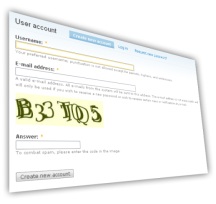
Suppose you wish to enable image captchas for the user registration page. First, select Image captcha for the captcha type. Then, open the "Captcha settings for anonymous user" setting box by clicking on the title. Check the box in front of "register a user account" and click save. If you now logout and visit user/register you'll see an image captcha on the registration form.
Further reading
Settings for both captcha types are available via tabs on Administer » Site configuration » Captcha (admin/settings/mycaptcha). See for more information:
Visit the Advanced configuration guide to learn how to add a captcha to forms not listed on the Captcha settings page.
Image captcha settings
The tab 'Images' on Administer » Site configuration » Captcha (admin/settings/mycaptcha/image) gives access to a few settings to influence image captcha generation.
- Characters to appear in the image
- Only characters in this textfield will be used in an image captcha. Those that can be easily mistaken for one-another in the font you are useing (eg i and l) can be removed.
- Font
- Relative path to a TrueType font you wish to use. MyCaptcha comes with a number of Bitstream fonts in the font subfolder.
- Minimum captcha length
- The minimum amount of characters that appears in the captcha.
- Maximum captcha length
- The maximum amount of characters that appears in the captcha.
Next come a number of settings that add noise to the picture to make solving the captcha more difficult. As you can see in the examples below, those settings can be combined. Overdoing it might lead to a high percentage of captchas that aren't solvable by your visitors.
Be aware that some settings make it more time consuming, not impossible for a program to solve a CAPTCHA; most despeckle algorithms can clean up the dot noise, but they cost time.
| CAPTCHA | Settings |
|---|---|
| No additional noise | |
| Double vision | |
| Add dots as noise | |
| Add lines as noise | |
| Double vision, add dots as noise | |
| Add dots as noise, add lines as noise |
Math captcha settings
The tab 'Math' on Administer » Site configuration » Captcha (admin/settings/mycaptcha/math) doesn't contain a whole lot of settings. The only configurable option right now is the maximum answer of the math captcha. This is a measure of the difficulty of the captcha for humans (at least for those who can't find Calculator in their Start menu). The higher the maximum answer, the lower the chance that a bot guesses the right answer.
Note: It would be fairly easy to write a bot that could solve this kind of captcha.