Guides
These pages have a draft status.
Captcha
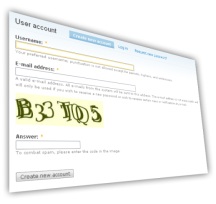
MyCaptcha1 is a CAPTCHA implementation for Drupal 5.x. A CAPTCHA is a test that tries to determine whether a user is human (learn more).
The combination of MyCaptcha and Form Store enables you to add captchas to arbitrary forms2 on your site without modifying a single line of code.
While MyCaptcha provides much of the same functionality, it is not related to the Captcha and TextImage modules by Fabiano Sant'Ana that can be downloaded from Drupal.org.
1Yes, a lousy name.
2Due to the way the Drupal login form has been coded, it cannot be protected by MyCaptcha.
Bugs & Support
Update: MyCaptcha is no longer supported.
FAQ
- Will there be a Drupal 6 version?
-
Considering the improvement in the Drupal.org captcha in the last three years, the effort spend to update MyCaptcha to Drupal 6.x is not proportional to the benefits it has. So, I'm sorry, but there will not be a Drupal 6.x version of MyCaptcha.
- Why is this module not on Drupal.org?
-
There's already a CAPTCHA module on Drupal.org. Functionality should not be duplicated in the Drupal.org repository.
- OMG! The image is unreadable!!!!
-
Visit the settings page on Administer » Site configuration » Captcha (admin/settings/mycaptcha/image) and disable some of the noise options (Double vision, Dots, Lines). See the page Image captcha settings for more information.
Requirements
Before installation, ensure your system meets the requirements.
- Drupal 5.x
- MySQL as database
- PHP with GD 2 support (default)
- The FreeType library.
- Form Store - Installation covered in this guide.
While MyCaptcha supports PostgreSQL, Form Store doesn't (yet; there's an untested patch in the Form store issue queue).
MyCaptcha cannot be used alongside the modules TextImage and Captcha from Drupal.org.
Installation
Download and install
- Download Form Store.
- Extract the folder
form_storeintosites/all/modules/using a decompression utility (7-zip). - Download MyCaptcha.
- Extract the folder
mycapintosites/all/modules/using a decompression utility (7-zip).
Enable the modules
Visit Administer » Site building » Modules (admin/build/modules) and check the modules:
- Form Store
- Form Collect
- MyCaptcha
Save the configuration. Both Form Store and MyCaptcha will apply all necessary changes to the database.
Basic configuration
The first tab of Administer » Site configuration » Captcha (admin/settings/mycaptcha) enables you to select the captcha type (math or image) that will be used site-wide. It also contains the clickable sentence "Captcha settings for ..." for each role defined on your site.
When you click on such a sentence, for example, "Captcha settings for anonymous user", a box will open as in the image on the right. This box lists the various forms you can use a captcha on. Simply check the relevant forms and repeat for the other roles on your site (if necessary). Click Save and you're done.
Example
Suppose you wish to enable image captchas for the user registration page. First, select Image captcha for the captcha type. Then, open the "Captcha settings for anonymous user" setting box by clicking on the title. Check the box in front of "register a user account" and click save. If you now logout and visit user/register you'll see an image captcha on the registration form.
Further reading
Settings for both captcha types are available via tabs on Administer » Site configuration » Captcha (admin/settings/mycaptcha). See for more information:
Visit the Advanced configuration guide to learn how to add a captcha to forms not listed on the Captcha settings page.
Image captcha settings
The tab 'Images' on Administer » Site configuration » Captcha (admin/settings/mycaptcha/image) gives access to a few settings to influence image captcha generation.
- Characters to appear in the image
- Only characters in this textfield will be used in an image captcha. Those that can be easily mistaken for one-another in the font you are useing (eg i and l) can be removed.
- Font
- Relative path to a TrueType font you wish to use. MyCaptcha comes with a number of Bitstream fonts in the font subfolder.
- Minimum captcha length
- The minimum amount of characters that appears in the captcha.
- Maximum captcha length
- The maximum amount of characters that appears in the captcha.
Next come a number of settings that add noise to the picture to make solving the captcha more difficult. As you can see in the examples below, those settings can be combined. Overdoing it might lead to a high percentage of captchas that aren't solvable by your visitors.
Be aware that some settings make it more time consuming, not impossible for a program to solve a CAPTCHA; most despeckle algorithms can clean up the dot noise, but they cost time.
| CAPTCHA | Settings |
|---|---|
| No additional noise | |
| Double vision | |
| Add dots as noise | |
| Add lines as noise | |
| Double vision, add dots as noise | |
| Add dots as noise, add lines as noise |
Math captcha settings
The tab 'Math' on Administer » Site configuration » Captcha (admin/settings/mycaptcha/math) doesn't contain a whole lot of settings. The only configurable option right now is the maximum answer of the math captcha. This is a measure of the difficulty of the captcha for humans (at least for those who can't find Calculator in their Start menu). The higher the maximum answer, the lower the chance that a bot guesses the right answer.
Note: It would be fairly easy to write a bot that could solve this kind of captcha.
Advanced configuration
Suppose you want to add a CAPTCHA to the site-wide contact form. As you enable the Contact module and configure the various contact settings, you realize you're out of luck; The Captcha settings page on Administer » Site configuration » Captcha (adminster/settings/mycaptcha) doesn't list the contact form!
Now what?
This is the part where a bit of work is required. In order to add a CAPTCHA to arbitrary forms, MyCaptcha utilizes the helper modules Form store and Form Collect. The module Form store provides MyCaptcha with its list of forms, whereas Form Collect is an ultrasmall helper that can add any form to the Form Store.
Adding forms to the Form Store
As you can see in the image above, the contact form isn't listed in the Form Store. So, check whether the module Form Collect is enabled (admin/build/modules) and do as the help text says; Visit Administer » Site configuration » Form Store, tab Collect forms (admin/settings/form-store/collect).
Simply check "Collect forms while browsing the site" and save the configuration. Now, all you have to do is visit the forms you want to add to the Form Store, in our case the form on the path contact. The moment you, or another visitor views the form, it is added to the Store. Return to Administer » Site configuration » Form Store, tab Collect forms (admin/settings/form-store/collect) to disable the collection.
You will now see that the contact form, with the cryptic name contact_mail_page has been added to the Form Store.
You can use the Description field to provide a more friendly description. This description will, when available, be used by MyCaptcha. To edit or remove a form, click edit, then choose the appropriate action.
In our case, we will add the description "contact form" to the form with the internal name contact_mail_page, so we'll have a less confusing Captcha settings page.
Add a Captcha
After all this, you can visit Administer » Site configuration » Captcha (adminster/settings/mycaptcha) once more. The contact form is now listed on the page and a CAPTCHA (here in the most unreadable variant) can be added to it.
Notes
While the example just adds one form to the Form Store, you can add multiple forms in one sitting.
When you finish Form collection, visit Administer » Site configuration » Form Store, tab Collect forms (admin/settings/form-store/collect) to disable collection. You can now disable the module Form collect (on admin/build/modules).
Known issues
- MyCaptcha can not be used with the login (user block & /user)or poll voting form.
This is due to the design of Drupal core. - MyCaptcha does not generate a new challenge when a form submission results in an error (other than in the CAPTCHA answer itself). While this is desireable behaviour for the large majority of forms, it does diminish its value on certain forms. Take the request new password form (user/password) for example; a bot can be 'primed' with the right captcha response, after which it can continue guessing for up to two hours (as the CAPTCHA expires in 7200 seconds).
This will change in the future, allowing per form settings. - MyCaptcha interacts with page caching (admin/settings/performance). A captcha prevents caching of pages on which it appears. You need to make sure forms with a captcha do not appear on too many pages, or cache will be effectively off. The comment submission form is the cause for most concern. Make sure you set the "Location of comment submission form" to "Display on separate page" on Administer » Content management » Comments, tab Settings (admin/content/comment/settings) or your content will no longer be cached.
This is by design. - When a user has more roles then just the "authenticated user" role, the captcha setting for "authenticated user" will not take effect for that user.
This is by design. -
When you are user 1 you will never see a captcha.
This is by design. - When you remove a form from the Form store while a captcha is enabled for it, you can no longer disable the captcha for the form. Add the form back to the Form store, then disable the captcha.
This is unfortunate. - If a certain (broken) form performs a drupal_goto() in its form submit function, MyCaptcha will not be able to clean up. This undermines the use of MyCaptcha for this form as the seed will be reuseable.
File a bug against the affected module.
Other known issues may be found in the MyCaptcha forum.
Thanks & Credits
MyCaptcha uses fonts by Bitstream and a wave distortion function from KCAPTCHA by Kruglov Sergei.
- Thanks to Xamox for testing.
- Thanks to Sepeck for testing.
- Special thanks to Tjeerd Zwaga.
MyCaptcha is Copyright © 2007 by Heine Deelstra. Please see the files LICENSE.TXT and fonts/LICENSE.txt in the download for licensing terms.
The most up to date credits can be found in the Thanks & Credits section of README.txt.
Drupal Developer FAQ
FAPI - How to decrease/increase the text limit of textfields?
Set the #maxlength property.
$form['example'] = array(
'#type' => 'textfield',
'#maxlength' => 5,
// ...
);
The default value is 128.
Help! - Cannot access a global variable.
Suppose you have the following module. To your dismay, the value of the variable you think is global is not accessible:
$myvar = 'foo';
function example_something() {
global $myvar;
return $myvar; // returns NULL
}
Cause
From http://www.php.net/manual/en/function.include.php
When a file is included, the code it contains inherits the variable scope of the line on which the include occurs.
As module files are loaded by drupal_load, it follows that $myvar is a variable declared in the local scope of the function drupal_load.
Solution
Use the global keyword or $GLOBALS superglobal.
// Declare and initialize $myvar as an explicit global:
global $myvar;
$myvar = 'foo';
// Or use the superglobal:
$GLOBALS['myvar'] = 'foo';
function example_something() {
global $myvar;
return $myvar; // returns 'foo'
}
How do I add a class to a link generated with l()
How do I recreate a Javascript translation file?
- Remove the file from
[your_files_directory]/languages/(if any)
Then execute the following queries on the database (see settings.php for which database is in use):
UPDATE languages SET javascript = '' WHERE LANGUAGE = '[yourlanguage]';UPDATE variable SET VALUE = 'a:0:{}' WHERE name = 'javascript_parsed';TRUNCATE cache;
If you now visit the relevant page, the translation will be regenerated.
Implemented hook_block, now all blocks are gone
If all your blocks disappear from the site the moment you add a hook_block implementation to your module, check whether you have a theme with the same name as your module.
Cause: The theme system uses your hook_block implementation as if it were a theme_block implementation.
Either rename your module or the theme.
Why is a menu item from hook_menu not accessible?
- Is your module enabled?
- Whenever you make a change to your module's hook_menu implementation, you need to rebuild the router table by visiting
admin/build/modules. The Devel module provides a block that has a menu rebuild shortcut. - Does you hook_menu implementation return the menu item array?
- Is your hook_menu properly named as modulename_menu?
- Carefully check whether the array keys you use are correct. A common mistake is the use of
'page_callback'instead of the correct'page callback'. - Check what access callback and access arguments are used.
- Make sure that your hook_menu implementation is in the .module file, not an include file.
Why is my module's update hook not listed on update.php's selection form?
Apart from obvious causes (module not enabled, update hook misnamed), there's a actual pitfall here; You cannot use mixed case filenames for modules.
Background
Suppose you have a module Example with Example.module and Example.install as files. Example.install contains your Example_update_6001() function.
Update.php uses the PHP function get_defined_functions to enumerate update hooks. The function returns lowercase functionnames (PHP function names are case insensitive). Drupal, however, does a case-sensitive string compare (strpos) with the module name. These will never match.
Solution
Use all lowercase module names (example.module vs. Example.module, mymodule.module vs. MyModule.module). Alternatively, wait for a bugfix via Issue #200628.
Drupal Forms API
Under construction.
From the Forms API quickstart guide:
The Drupal forms API is a powerful leap forward. It also allows for almost unlimited possibilities for custom theming, validation, and execution of forms. Even better, ANY form (even those in core) can be altered in almost any way imaginable--elements can be removed, added, and rearranged.
Forms API goes by the moniker FAPI.
Example scaffolding
Before we dive into the details of the Forms API, we need a little scaffolding code to enable you to test the examples on a site. Here we map the URL example/page to the function call example_page(). We'll later fill this function with relevant code.
if ($may_cache) {
$items = array();
$items[] = array(
'path' => 'example/page',
'title' => 'Example',
'callback' => 'example_page',
'access' => user_access('access example'),
'type' => MENU_CALLBACK,
);
return $items;
}
}
function example_perm() {
return array('access example');
}
/**
* This function will be called upon a visit to example/page.
*/
function example_page() {
}
The example implements the following hooks:
- hook_menu
- Maps URLs to callback functions in addition to providing a way to define actual entries in the navigation menu.
- hook_perm
- Supplies permissions that can be assigned on the admin/users/access page and checked with user_access().
To use the example code on your site, you can save it in sites/all/modules/example/example.module together with example.info:
description = Toy with FAPI examples.
FAPI stages
This is in progress.
The pivotal FAPI function is drupal_get_form(); it retrieves a form from a builder function, passes it on for processing, and renders the form or redirects to its destination as appropriate.
One can distinguish three stages in the life of a form:
- Stage I - Building.
- Stage II - Validation.
- Stage III - Submission.
Stage I - Building
The building stage starts when you call drupal_get_form('form_id'), with the function scurrying away to find the builder function of the appropriate form. To keep it simple for now; drupal_get_form checks if the function form_id() exists, then calls it, expecting a proper FAPI array in return. Alternatives to this approach will be discussed in future chapters.
In the code below, we fetch a form with the identifier myform, build by the function myform(), specifying a select box, a textfield and a button.
// Forms are identified by their form id, in this case 'myform'.
// drupal_get_form will fetch the form from the builder function myform().
return drupal_get_form('myform');
}
/**
* Builder function for the form with the form_id myform.
* Returns a form array.
*/
function myform() {
$form = array();
// A combo box with three options.
$form['gender'] = array(
'#type' => 'select',
'#title' => t('Gender'),
'#options' => array('male' => t('Male'), 'female' => t('Female'), 'unknown' => t('Not sure')),
);
// A textfield to provide the number of siblings. We have to ensure numeric input.
$form['siblings'] = array(
'#type' => 'textfield',
'#title' => t('How many siblings do you have?'),
);
// Submission button with the text 'Save'.
$form['save'] = array(
'#type' => 'submit',
'#value' => t('Save'),
);
return $form;
}
This builder function supplies a number of fields defined by keys of the nested forms array. The '#key' => 'value' pairs are properties of the field. We'll deal with those later, but you can take a look at the FAPI reference to get a feel for the available properties.
Stage II - Validation
When the user clicks a button on the form, data is send back to the server. Drupal reruns the form builder function and then starts the validation stage. A few properties are automatically validated. Required fields, maximum input length (textfields), whether selected options are valid options and the internal form token (to protect against cross site request forgeries).
There are multiple ways to do some validation yourself, but the easiest is to provide a [form_id]_validate function. This takes two arguments: the form id and an array of values. In the example we use a custom validation function to make sure that the number of siblings is numeric. By setting an error on the field 'siblings' we ensure that the form is redisplayed to the user with the error message "Please enter a number".
* Input validation takes place in [form_id]_validate().
*/
function myform_validate($form_id, $form_values) {
// If the input received in the siblings field is not numeric, set an error on that field.
// This will prevent progression to [form_id]_submit() and redisplay the form to the user.
if (!is_numeric($form_values['siblings'])) {
form_set_error('siblings', t('Please enter a number.'));
}
}
When the form validation is successful, the next stage starts: submission.
Stage III - Submission
* With validation passed [form_id]_submit() acts on the submission.
*/
function myform_submit($form_id, $form_values) {
$query = "INSERT INTO {example} (gender, siblings) VALUES ('%s', %d)";
db_query($query, $form_values['gender'], $form_values['siblings']);
}
Elements
If you are familiar with the Drupal forms API you know the concept of form elements as the basic building blocks of any form. Drupal provides several types of elements, some rather straightforward (#type textfield), some more advanced (#type password_confirm).
It is also possible to define custom form elements that enable you to implement complex widgets with ease.
At the moment, the focus of Elements is the tableselect widget. It provides a clean, easy way to create tables with one checkbox per row, multi-row selection and a select all checkbox, without making your code a complicated mess.
Example scaffolding
You can use the following code to create an example.module which you can use to experiment with the examples in this guide.
function example_menu($maycache) {
if ($maycache) {
$items[] = array(
'path' => 'scratch/elements',
'access' => user_access('administer site configuration'),
'type' => MENU_NORMAL_ITEM,
'title' => t('Elements'),
'callback' => 'drupal_get_form',
'callback arguments' => array('example_elements_form'),
);
return $items;
}
}
name = "Example"
description = "Quick scratch module."
Comboselect element
The comboselect element has not yet been included in Elements. You can follow its development at #268424.
The comboselect written by John Morahan gives you a select type element with an 'Other' option. When the user chooses this option; a textfield appears.
Create a simple comboselect element
$form = array();
$options = array(
'one' => t('First Option'),
'two' => t('Second Option'),
);
$form['choice'] = array(
'#type' => 'comboselect',
'#title' => t('Example'),
'#default_options' => $options,
);
$form['submit'] = array(
'#type' => 'submit',
'#value' => t('Submit'),
);
return $form;
}
Change the 'Other' option
$form = array();
$options = array(
'one' => t('First Option'),
'two' => t('Second Option'),
);
$form['test'] = array(
'#type' => 'comboselect',
'#title' => t('Example'),
'#required' => TRUE,
'#default_options' => $options,
'#other' => t('None of the above, but'),
);
$form['submit'] = array(
'#type' => 'submit',
'#value' => t('Submit'),
);
return $form;
}
| Attachment | Size |
|---|---|
| comboselect_other_wording.JPG | 15.45 KB |
Tableselect element
The form element tableselect provides a clean, easy way to create tables with one checkbox per row, multi-row selection and a select all checkbox, without making your code a complicated mess:

Update: This book is about the tableselect element provided by the Elements module for Drupal 5 and 6. See A new form element in Drupal core for a HOWTO on the new Drupal 7 form element.
A simple table
The basic properties of the tableselect element are #header which accepts an array of key => value pairs to generate the header from and #options, which receives an array of rows.
The basic structure looks like the following:
The tableselect element relies on the keys to match columns with the appropriate header. The element will behave like the #checkboxes type. You'll get an array of values in your submit function, with the checked ones set to nonzero so you can array_filter them to get the checked rows.
$form = array();
$header = array(
'title' => t('Title'),
'author' => t('Author'),
);
$query = "SELECT n.nid, n.title, u.name FROM {node} n INNER JOIN {users} u ON n.uid = u.uid";
$result = pager_query(db_rewrite_sql($query));
while($partial_node = db_fetch_object($result)) {
$options[$partial_node->nid] = array(
'title' => check_plain($partial_node->title),
'author' => check_plain($partial_node->name),
);
}
if (!empty($options)) {
$form['nodes'] = array(
'#type' => 'tableselect',
'#header' => $header,
'#options' => $options,
);
$form['pager'] = array('#value' => theme('pager'));
$form['submit'] = array(
'#type' => 'submit',
'#value' => t('Submit'),
);
}
return $form;
}
Which results in:

Support for sortable tables
The tableselect element supports use with tablesort_sql. Simply modify the header to the format described in theme_table.
$form = array();
$header = array(
'title' => array('field' => 'n.title', 'data' => t('Title')),
'author' => array('field' => 'u.name', 'data' => t('Author')),
);
$query = "SELECT n.nid, n.title, u.name FROM {node} n INNER JOIN {users} u ON n.uid = u.uid". tablesort_sql($header);
$result = pager_query(db_rewrite_sql($query));
while($partial_node = db_fetch_object($result)) {
$options[$partial_node->nid] = array(
'title' => check_plain($partial_node->title),
'author' => theme('username', $partial_node),
);
}
if (!empty($options)) {
$form['nodes'] = array(
'#type' => 'tableselect',
'#header' => $header,
'#options' => $options,
);
$form['pager'] = array('#value' => theme('pager'));
$form['submit'] = array(
'#type' => 'submit',
'#value' => t('Submit'),
);
}
return $form;
}
Properties
- #header
- The table header, an array of field_key => title pairs or the format described for theme_table.
- #options
- The data displayed in the table. Nested array of id => array pairs where the array is an array of field_key => value pairs.
- #multiple
- Determines whether multiple values can be selected. Displays checkboxes when TRUE, radios when FALSE.
Default: TRUE - #advanced_select
- Whether to provide advanced selection behaviour (SELECT ALL checkbox, SHIFT-select).
Default: TRUE - when #multiple is TRUE.
When #multiple is FALSE, always FALSE. - #default_value
- Provide an array of id => x pairs for the ids that should be selected by default when #multiple is TRUE.
Provide the id as a scalar for the id that should be selected by default when #multiple is FALSE.